You clicked update. The page hung. Now every visitor — including you — sees "Briefly unavailable for scheduled maintenance. Check back in a minute."
A minute passes. Then ten. The message does not change, and you cannot reach the dashboard to do anything about it.
Good news: this is one of the few WordPress problems with a genuinely quick fix. WordPress stuck in maintenance mode takes about thirty seconds to resolve once you know where to look.
What actually happened
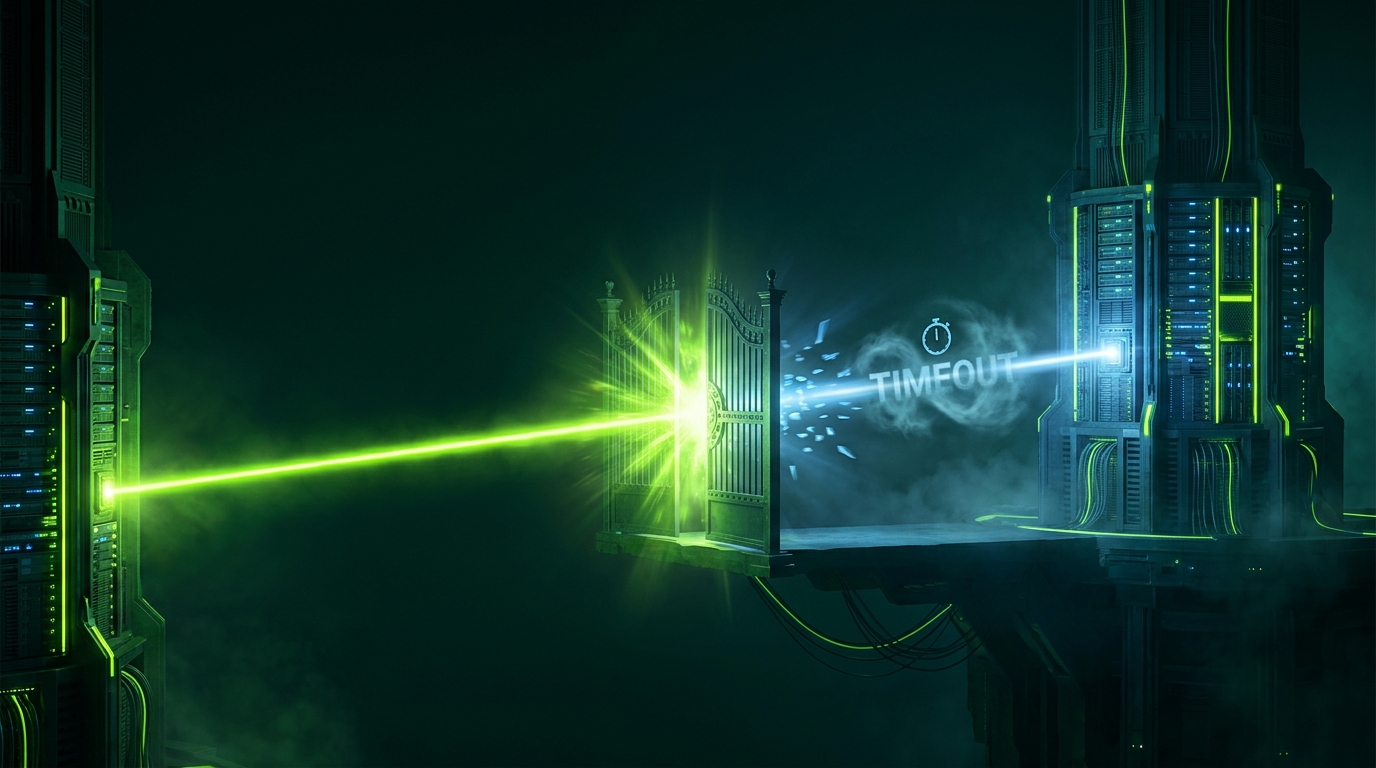
When WordPress begins an update, it creates a file called .maintenance in your web root. While that file exists, WordPress shows the maintenance message to everyone instead of loading the site. It is a safety measure — you do not want visitors hitting a site mid-update with half its files replaced.
When the update finishes, WordPress deletes the file and everything returns to normal.
If the update fails partway — a timeout, a memory limit, a dropped connection, a browser tab closed too early — WordPress never reaches the step where it deletes that file. The update stopped, but the flag stayed up.
The site is not broken. It is waiting for permission to come back, and the file granting that permission never got removed.
The fix
Delete the file. That is genuinely all.
- Connect via FTP, SFTP, or your host's file manager
- Go to your web root — the folder containing
wp-config.php,wp-adminandwp-content - Enable "show hidden files", since names starting with a dot are hidden by default
- Find
.maintenanceand delete it - Reload your site
It should be back immediately. If you cannot see the file, it is the hidden-files setting — every FTP client and file manager has that toggle somewhere in its preferences or settings menu.
Do not stop there
This is the part people skip. Removing the file brings the site back, but it does not finish the update that failed. You now have a site that may be running half-updated code.
Once you are back in the dashboard, check three things:
What state is the update in? Go to Dashboard → Updates. If the plugin or theme still shows as needing an update, it did not complete. Run it again, and watch it finish this time.
Does the site actually work? Check your homepage, a key landing page, the contact form, and checkout if you have one. A partial update can leave mismatched files that break things subtly.
Is the database updated? Some updates change database structure after copying files. If the file copy failed midway, the database may be out of step with the code. Re-running the update usually resolves this.
Why the update failed in the first place
Worth knowing, because it will happen again otherwise.
PHP timeout. The most common cause. Your server limits how long a script may run, and a large update exceeds it. Shared hosting often sets this low.
Memory limit. The update needs more memory than PHP is allowed. Raise it in wp-config.php with define('WP_MEMORY_LIMIT', '256M'); and ask your host if that has no effect.
Connection interrupted. You closed the tab, lost wifi, or the browser timed out. The update was running on the server, but the request that triggered it died.
Updating too many things at once. Selecting twenty plugins and clicking update is asking one request to do a great deal of work. Update in batches of three or four.
Disk space. Updates need room to download and unpack. A full account fails partway through.
Making it less likely
The habits that prevent this are the same ones that prevent most update problems.
- Back up before updating, so a bad outcome is recoverable rather than a crisis
- Update in small batches and let each finish before starting the next
- Do not close the tab while an update is running
- Test major updates on staging first
- Update outside peak hours, so a stuck site is not costing you sales while you fix it
- Run uptime monitoring — this is exactly the kind of failure that can sit unnoticed overnight
That last point matters more than it sounds. A site stuck in maintenance mode at 6pm on Friday looks fine to you because you have gone home. It is still showing that message on Monday morning.
If it keeps happening
Repeated stuck updates point at an underlying resource problem rather than bad luck. Usually it is PHP timeout or memory limits set too low for the size of your site.
That is worth raising with your host directly, and it is sometimes a sign the site has outgrown its plan. Our guide to choosing WordPress hosting covers what to look for.
When it is not maintenance mode at all
One thing to rule out. If the message persists after deleting the file, or if the file was not there in the first place, you are looking at a different problem.
Some maintenance-mode plugins keep the site hidden using their own settings rather than that file — check whether one is active and switched on. And if the site shows a blank page or a critical error rather than the maintenance message, see our guides to the white screen of death and the WordPress critical error.
If you would rather not do updates by hand
Failed updates are the single most common cause of unplanned downtime we see, and they are entirely avoidable with staging and backups in place.
Our managed website plans cover updates tested on a staging copy before they touch the live site, daily backups, and uptime monitoring — so a stuck update is caught in minutes rather than discovered by a customer.
Get in touch if you would rather stop finding out about these the hard way.
Get Shielded
We build, host, secure and monitor business websites — cleaning up hacks and keeping sites online for clients across the UK, USA, Australia and the UAE.